Kthology
Digital Field Service Reports: Checklists, Signatures and PDF Reports in One Workflow
How Singapore service companies can replace paper job sheets with technician checklists, job photos, customer signatures and PDF reports that are sent automatically.
If your technicians still fill in paper job sheets, you already know the routine. The sheet is completed on site, signed by the customer, brought back to the office days later, and retyped before anyone can send a report or an invoice. Some sheets are hard to read. Some never come back.
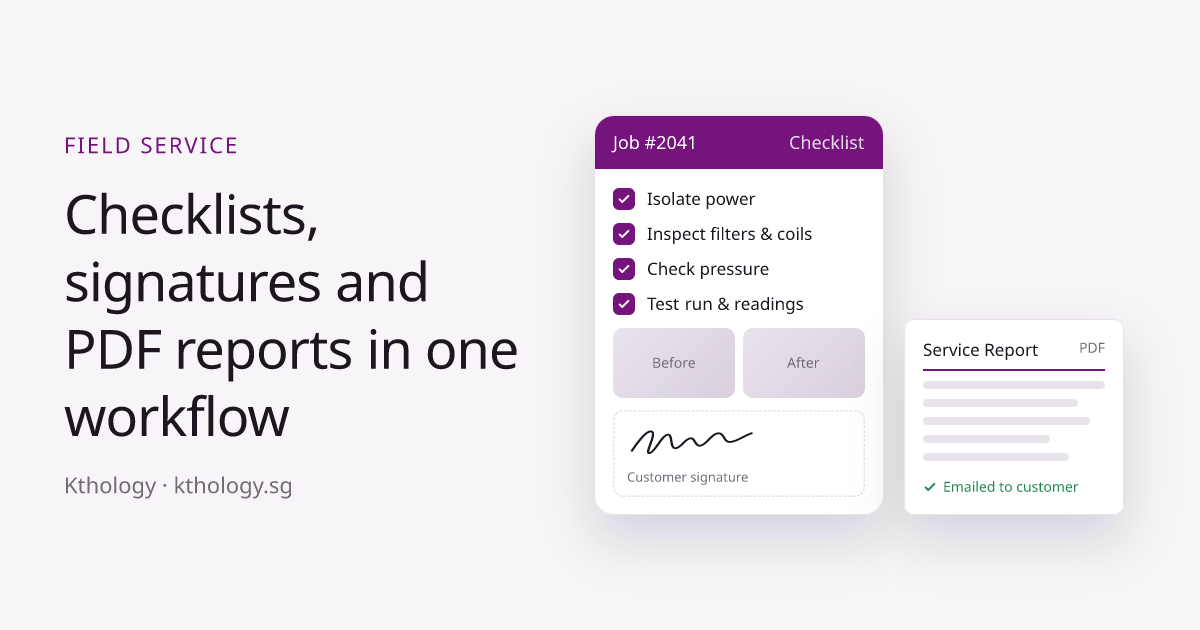
A digital workflow replaces that with one sequence on the technician’s phone: complete the checklist, attach job photos, collect the customer’s signature, and generate a PDF service report that is emailed automatically. This guide explains how it works, what to include, and how to roll it out without upsetting your team.
The problem with paper job sheets
- Delays. Reports and invoices wait until the paper reaches the office.
- Retyping. Office staff spend hours copying handwritten sheets into spreadsheets or accounting software.
- Missing information. Steps get skipped because nothing forces them to be filled in.
- Weak proof. Without photos and a clear signature, it’s harder to settle a dispute about what was done.
- No overview. Managers can’t see which jobs are finished today until the paperwork comes in.
How the digital workflow works
- Job assigned. The office creates the job and assigns it to a technician, who sees it on their phone with the customer’s address and job details.
- Checklist on site. The technician works through a checklist built for that type of job, ticking each step and entering readings where needed.
- Job photos. Before-and-after photos are attached to the job, so there is a record of the condition and the work done.
- Customer signature. The customer signs on the screen to confirm the work was completed.
- PDF report sent. A branded PDF service report is generated with the checklist, photos and signature, and emailed to the customer and your office.
The office sees the completed job immediately, with everything it needs to raise the invoice.
See example screens of this workflow on our custom software page.
What to put in a good digital checklist
- Required steps. Mark the safety and quality steps that must be completed before the job can be closed.
- Readings and measurements. Use number fields with units, such as pressure or temperature, instead of free text.
- Photo prompts. Ask for photos at the points that matter, such as before work starts and after it is finished.
- Parts and materials. Record what was used, so it can be charged and restocked.
- Remarks. Leave space for follow-up work the customer should know about.
Start from the paper form your technicians already use. Keeping the same order of steps makes the switch much easier.
What the PDF service report should include
- Your logo, report number and date
- Customer name, site address and job type
- The completed checklist, including readings
- Before-and-after photos
- Technician name and the customer’s signature
- Remarks and recommended follow-up work
Who this suits
Any business that sends technicians to customer sites and produces a report for each visit, for example:
- Aircon servicing and M&E maintenance
- Equipment servicing and inspections
- Cleaning, pest control and facilities management
- Electrical, plumbing and fire safety checks
If your company also rents out equipment, the same approach works for check-out and return inspections. Our guide to equipment rental software covers that side.
Off-the-shelf app or custom workflow?
There are many field service apps on the market, and for a small team with a simple checklist one of them may be enough. A custom workflow is worth it when your report format is specific to your industry or customers, when you need it connected to your own job scheduling, inventory or accounting, or when you would rather own the system than pay per technician every month.
Rolling it out
- Pilot with one team. Run it on real jobs for two or three weeks and fix what slows technicians down.
- Keep paper as a short backup. Let the team fall back to paper during the pilot, then stop once they trust the app.
- Check signal on site. Plant rooms and basements often have weak reception. Make sure your app saves work on the phone and sends it when it reconnects.
- Train with real jobs. Ten minutes on an actual job beats an hour in a meeting room.
Frequently asked questions
Can we use our existing report format?
Yes. The PDF can follow your current layout and branding, so customers receive something familiar.
Do technicians need special devices?
Usually not. The workflow is built for the phones or tablets your team already uses.
Can customers sign on the technician’s phone?
Yes. The customer signs on screen, and the signature is added to the PDF report.
Who owns the reports and data?
You do. Reports, photos and job records stay in your system, and we hand over the source code at the end of the project.
Want to stop retyping job sheets?
Send us a copy of your current paper form. We’ll show you how it would work as a digital checklist and give you a fixed quote.
See our custom software service